ALT+F4

For server owners

Set up your server

Altffour's Setup screen checks your Jellyfin server section by section and does what it can in one click. This guide follows the same sections, in the same order, so you can read ahead: what each one gives your members, what the Setup screen does for you, and what's left for you to do.

To open it, sign in to Altffour as a Jellyfin administrator and go to Settings → Setup. Each section says Ready, Needs setup, Off or Unavailable, and why. Choose Not now on anything you don't want yet.

Watch

Films and series

Your library, and the extras around it that Companion adds.

Movies & Shows

Films and series from your own files, with artwork and details.

The Setup screen
Creates a Movies or Shows library from a folder you pick on the server, and scans the libraries for new files.
You do
Put your films and series in a folder Jellyfin can read, one folder per film or show.
Discovery rows

Home rows of popular and new titles, matched to what's in the library.

The Setup screen
Turns the rows on or off, and saves the catalog address they're read from.
You do
Choose the catalog address: the list of popular and new titles the rows are matched from.

Skip intro and credits

A Skip button for intros, recaps and credits.

The Setup screen
Turns the marker lookups (AniSkip for anime, IntroDB for the rest) on or off, and keeps their addresses.
You do
Nothing, usually: the default addresses work. Markers are saved as Jellyfin media segments, so other Jellyfin apps can use them too.

Seek previews

A picture of the moment while moving along the seek bar.

The Setup screen
Turns the previews on or off.
You do
Nothing. They're made with Jellyfin's own ffmpeg: if the Setup screen says it wasn't found, check your Jellyfin install.

Fast subtitles

Subtitles that show within seconds of pressing play.

The Setup screen
Turns fast subtitles on or off.
You do
Nothing. Like seek previews, they need Jellyfin's own ffmpeg, and Companion must be able to reach your server at its own address.

Upcoming

A calendar of the films and episodes on their way.

The Setup screen
Shows the request settings it needs: requests going straight to Radarr and Sonarr, with their addresses and API keys. The calendar is read from them.
You do
Run Radarr, Sonarr or both, and copy each one's API key from its Settings → General.
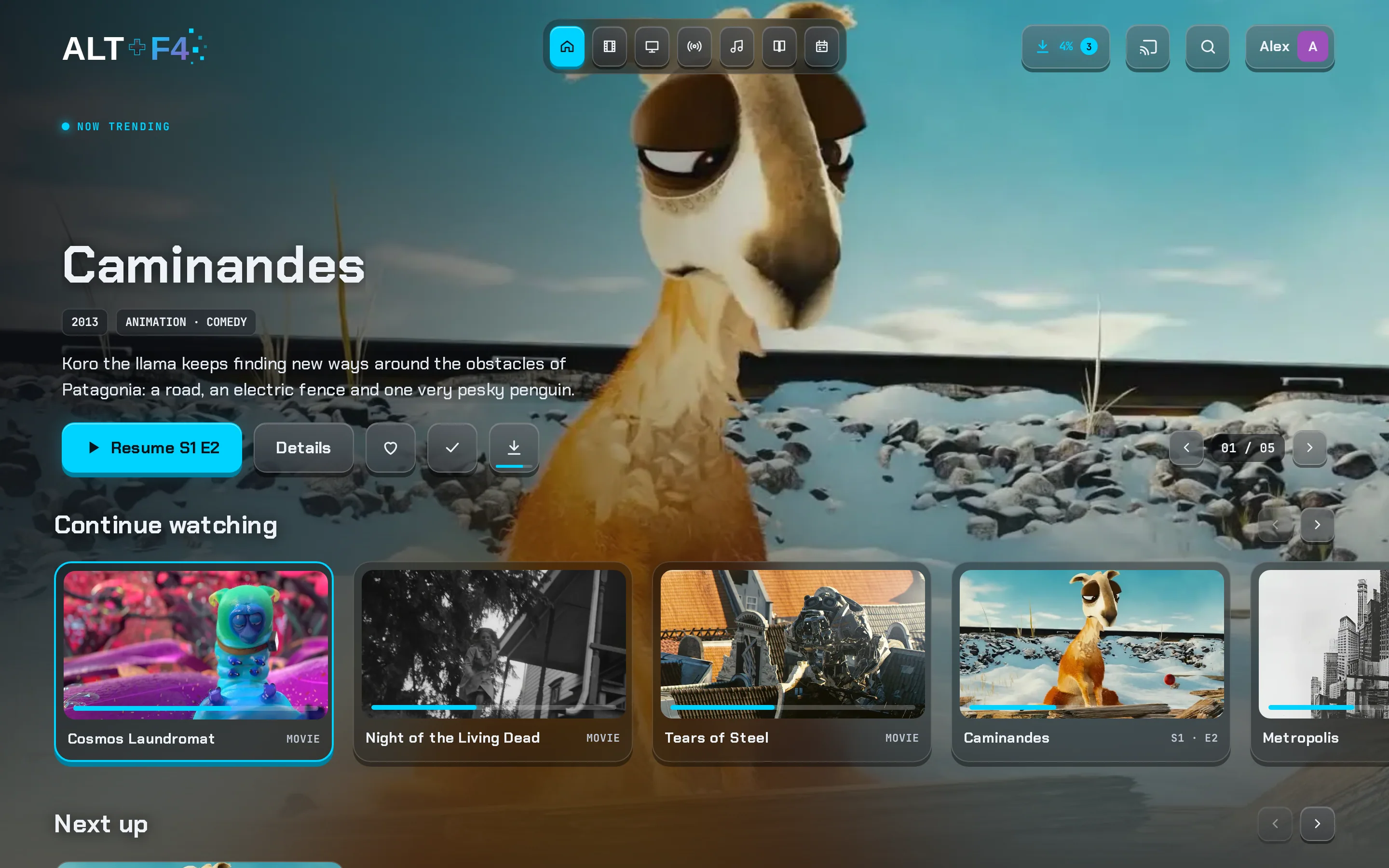
Home with a featured title and rows
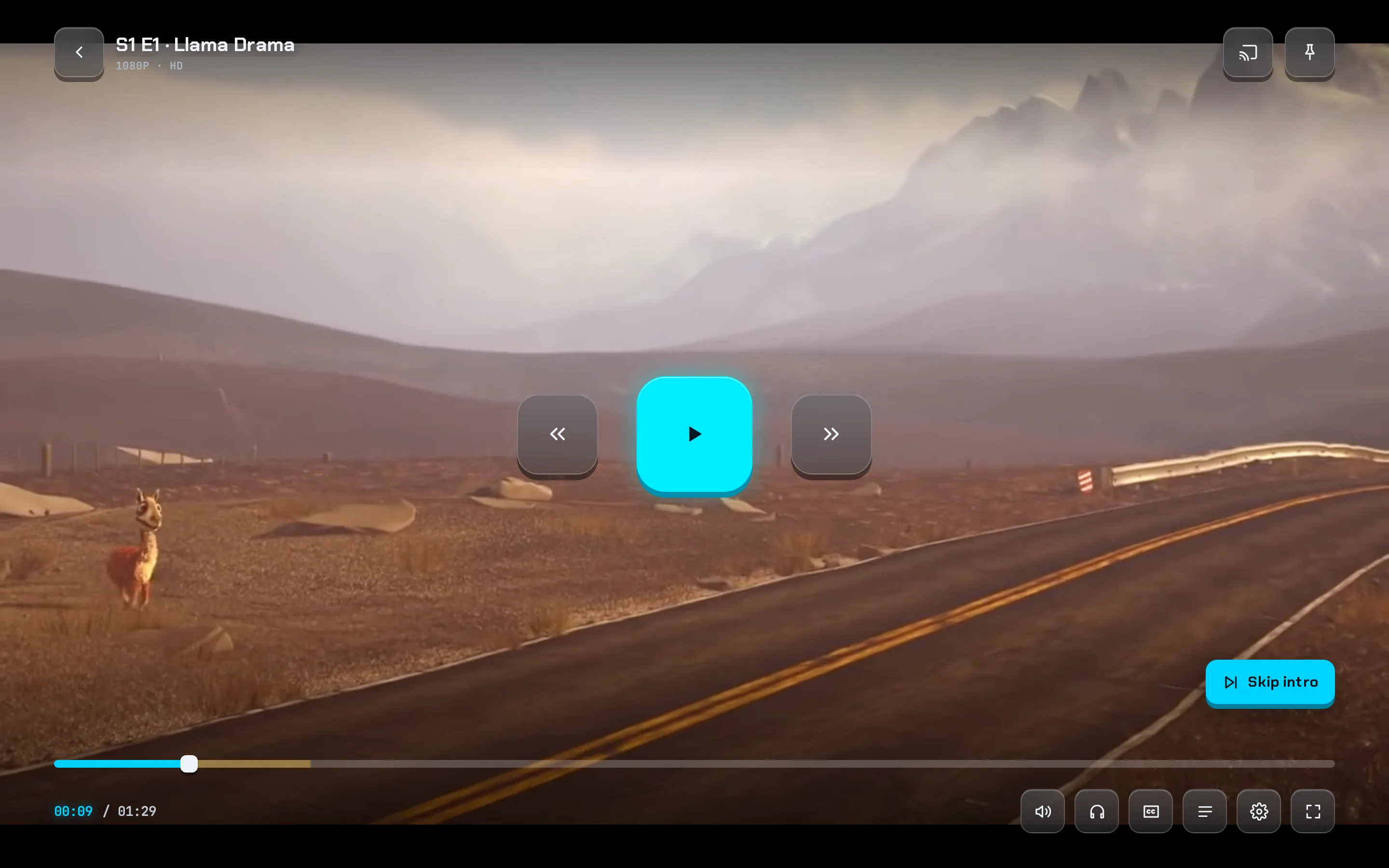
The player's Skip intro key with the intro marked on the seek bar
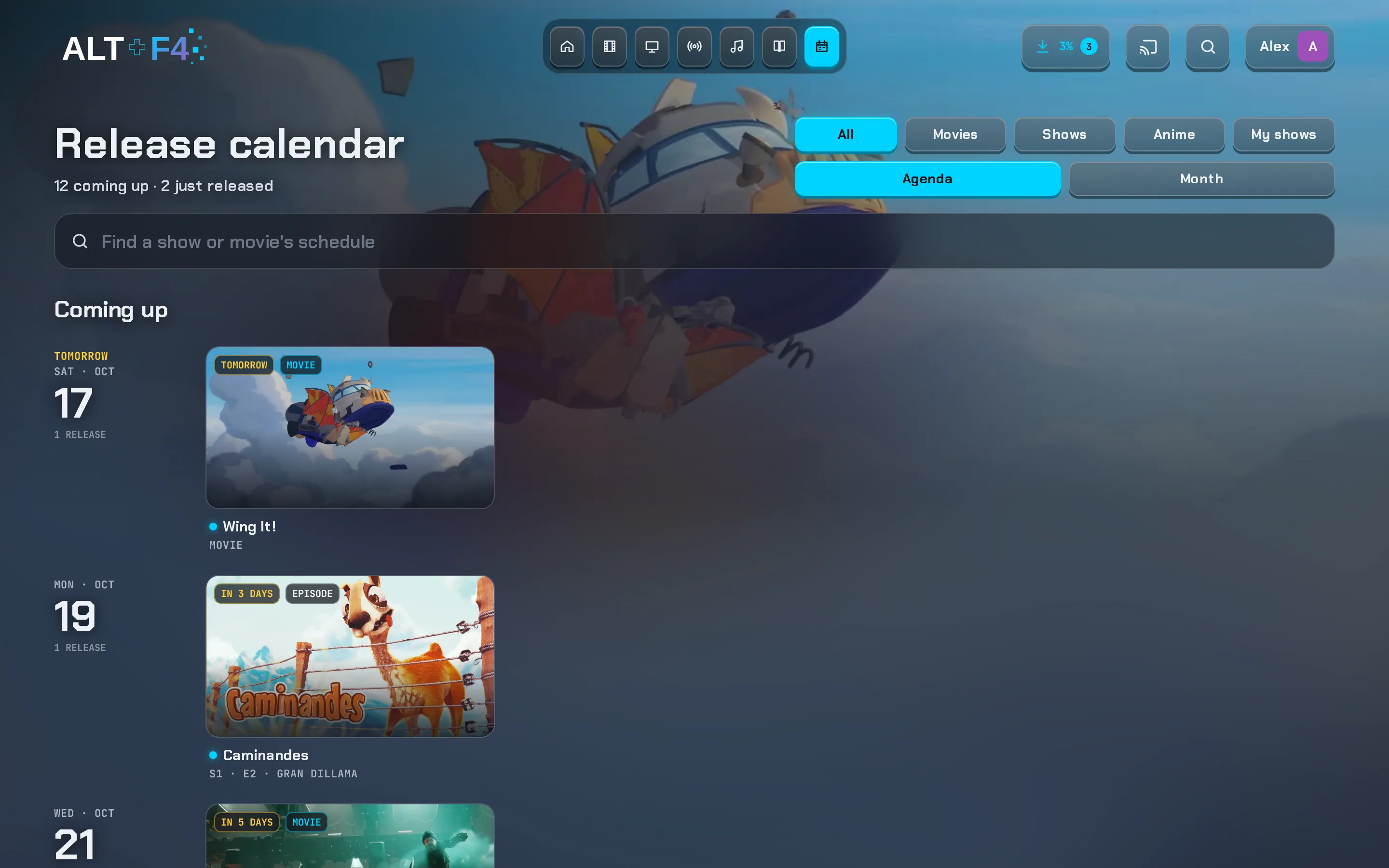
The release calendar

Listen & read

Music and books

Jellyfin's own libraries: no plugin needed.

Music

Albums, artists and playlists from your own music files.

The Setup screen
Creates a Music library from a folder you pick on the server, and scans the libraries for new files.
You do
Put your music files in a folder Jellyfin can read, in a folder per artist and album.

Books

Books and comics to read in the app.

The Setup screen
Creates a Books library from a folder you pick on the server, and scans the libraries for new files.
You do
Put your books and comics in a folder Jellyfin can read.
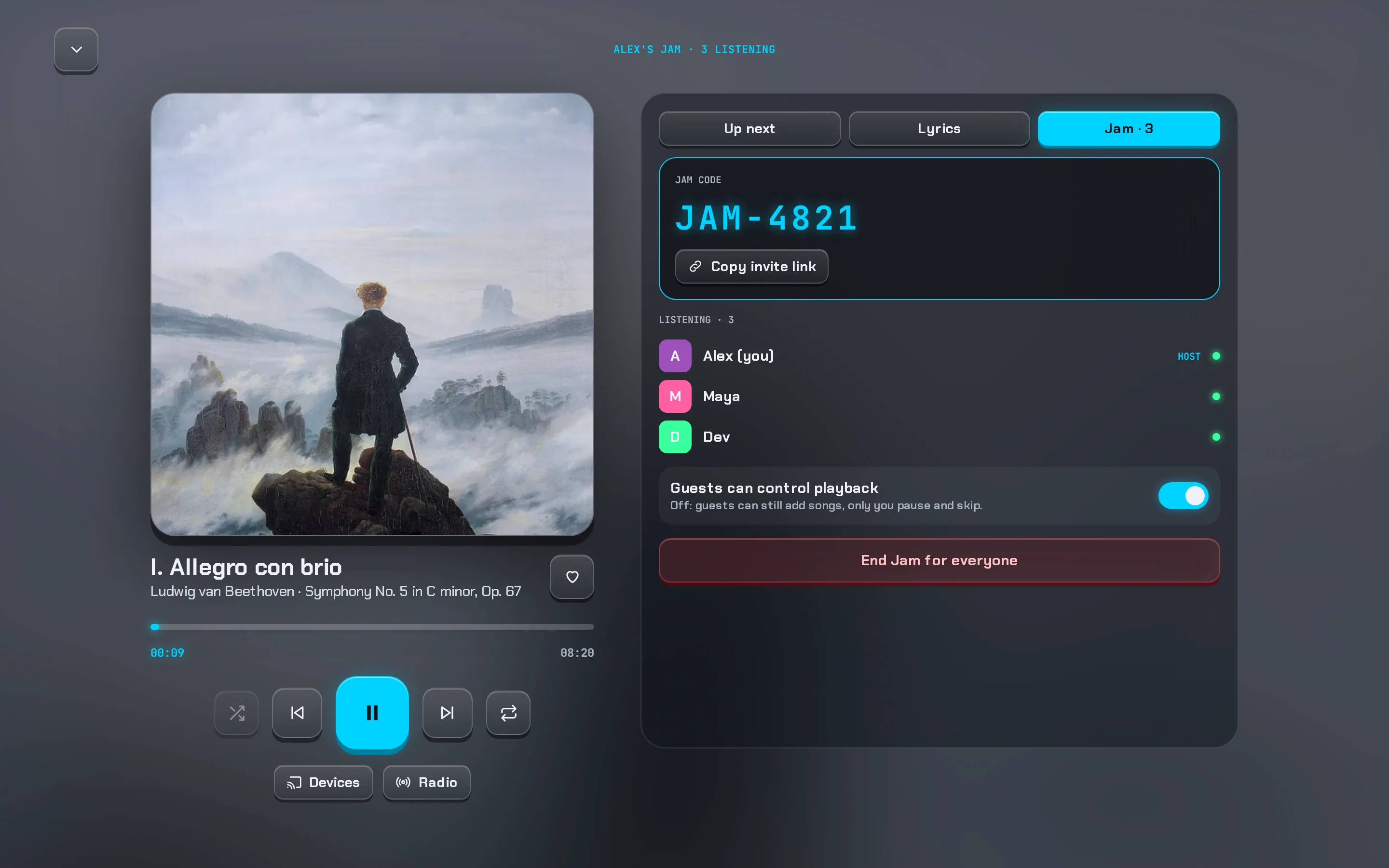
Music with a Jam in progress
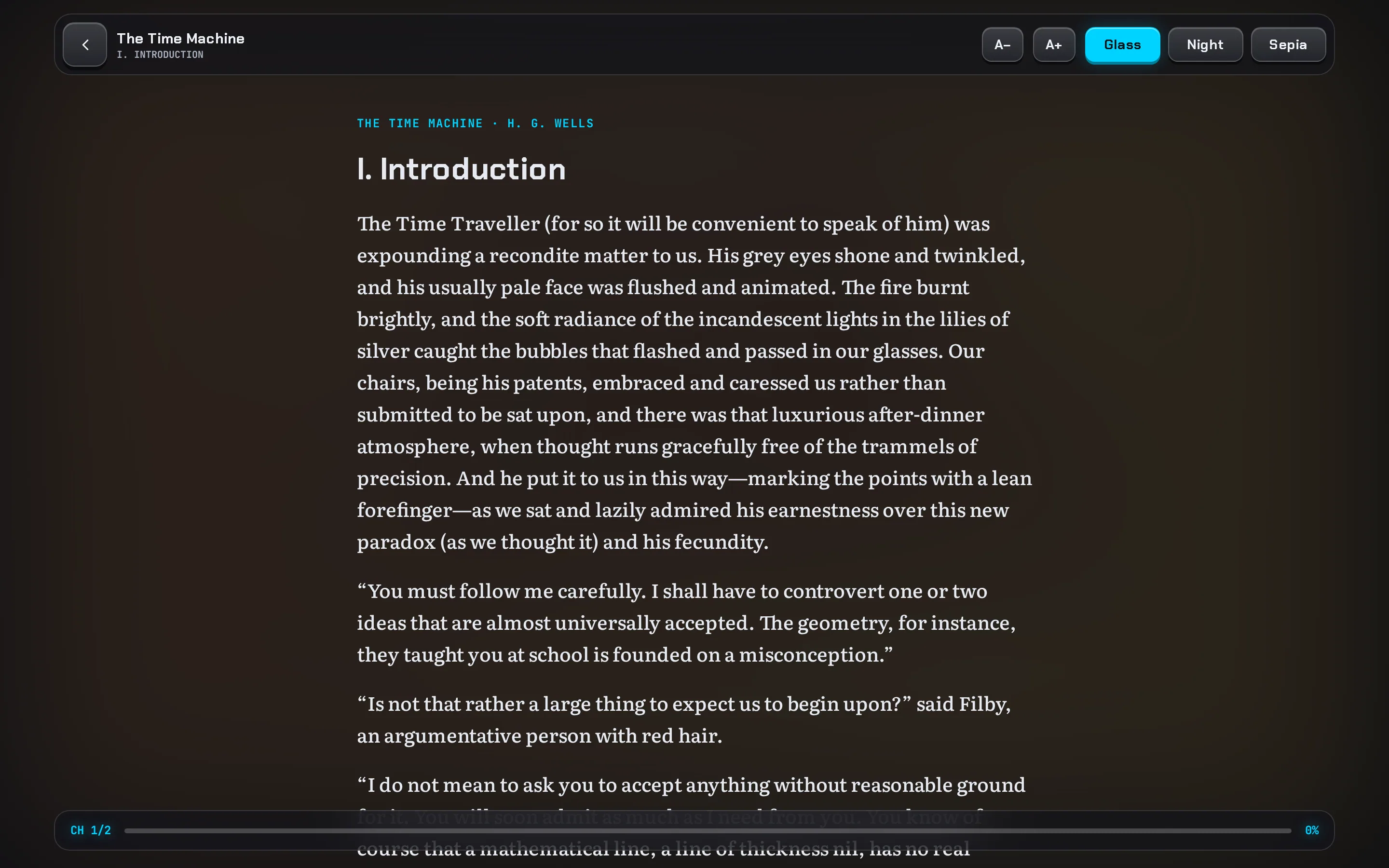
The book reader with a page of The Time Machine and its reading progress

Live TV

Channels and a guide

Jellyfin's Live TV, and members' own TV services through Companion.

Channels and guide

Live channels with a programme guide.

The Setup screen
Checks for a tuner, a guide source and channels, and says which one is missing and where to add it. It never picks them for you: they're your choice, and some cost money.
You do
In Jellyfin's Dashboard → Live TV, add a tuner (a TV tuner on your network, or a playlist of channels) and a guide data provider, then refresh the guide data.

Member TV services

Members can add a TV service they already have.

The Setup screen
Turns it on or off. It's off until you turn it on.
You do
Decide whether members may add a TV subscription they already have. Their sign-in details are kept encrypted on your server and never shown again, to them or to you.
The Live TV guide with categories and an on-now panel

Play

Games you own

Emulator support through Companion, and the controllers to play with.

Games

Emulator support: play games you own on supported consoles, in the browser. Connect RomM with your own game files.

The Setup screen
Saves RomM's address and account after signing in to RomM with them, and the EmulatorJS folder. Then it checks the folder holds EmulatorJS and at least one console's core.
You do
Run RomM, then connect RomM with your own game files:
  1. RomM's address and account: make a RomM account for the server to sign in with. The address can be https, or http on the same machine, your own network or a Docker container's name.
  2. Emulator files: the server needs its own copy of EmulatorJS, which isn't included with Companion. Download a release from emulatorjs.org.
  3. Where they go: put EmulatorJS in a folder Jellyfin can read, and give the Setup screen its data folder, the one with loader.js and cores/. A console is offered when its core is in cores/. Consoles that need BIOS files aren't offered.
Each player's saves are kept on your server. Games made for the web can be played from a web games folder instead of RomM.

Controllers

Play with a game controller on a TV, a phone or a computer. USB and Bluetooth controllers work.

The Setup screen
Checks nothing: it's Ready whenever Games is, and shows these steps.
You do
Pair a controller with the TV, phone or computer, not with the app.
  1. Android TV and Google TV: Settings → Remotes & accessories → Add accessory, then put the controller in pairing mode.
  2. Fire TV: Settings → Controllers & Bluetooth Devices → Game Controllers → Add New Game Controller.
  3. Android phone: Settings → Connected devices → Pair new device, or plug in a USB controller.
  4. Computer: plug it in, or pair it in the system's Bluetooth settings, then use the web app.
  5. Press a button once the game has started: the game sees a controller after its first press.
  6. The TV remote's arrows and OK work in games, but most games need a controller. Back leaves the game and saves where you are.
A, B, X and Y on an Xbox controller are the console's A, B, X and Y (on PlayStation: ×, ○, □ and △); the shoulder buttons are L and R; Start and Select are the middle buttons. Change them in the game's menu: Control Settings.

Members

The people who use your server

Requests, and what you can see of how the app is used.

Requests

Members ask for films and shows (through Seerr, or Radarr and Sonarr), and you approve them.

The Setup screen
Chooses how requests work: off, through Seerr, or straight to Radarr and Sonarr. It saves their addresses and API keys, and for Radarr and Sonarr the quality profile and root folder new titles get. A new Seerr address and key are tried before they're saved.
You do
Run Seerr, or Radarr and Sonarr, and copy their API keys. Then approve requests in the app as they come in, or let everyone's be approved automatically.

Usage counts

Anonymous counts of what's used, kept on your own server.

The Setup screen
Turns the counts on or off. They're off until you turn them on, and each person is asked first.
You do
Nothing else. The counts are never tied to a person or a device, and stay on your server for 90 days.
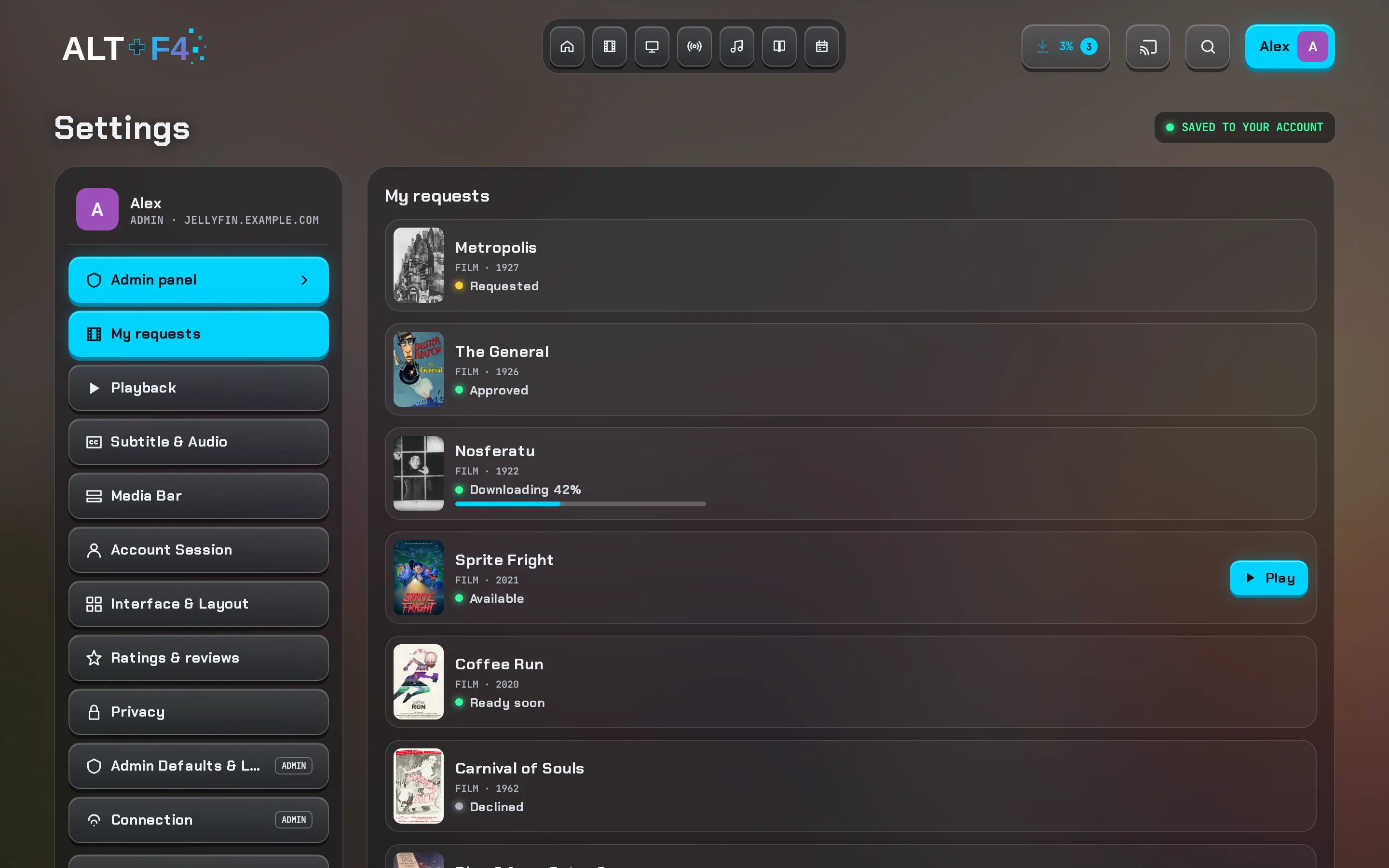
My requests: each request's state, from Requested to Available with Play

Server

The plugin behind the extras

Everything above that isn't Jellyfin's own comes from Companion.

Companion plugin

The Altffour plugin for Jellyfin. The sections above that aren't Jellyfin's own need it.

The Setup screen
Adds the plugin repository if Jellyfin doesn't have it, installs the newest Companion for your Jellyfin, and restarts Jellyfin when you say so, telling you first if anyone is watching. Updates work the same way.
You do
Nothing else, on Jellyfin 12.1 or newer. To install it by hand instead, follow the install steps.
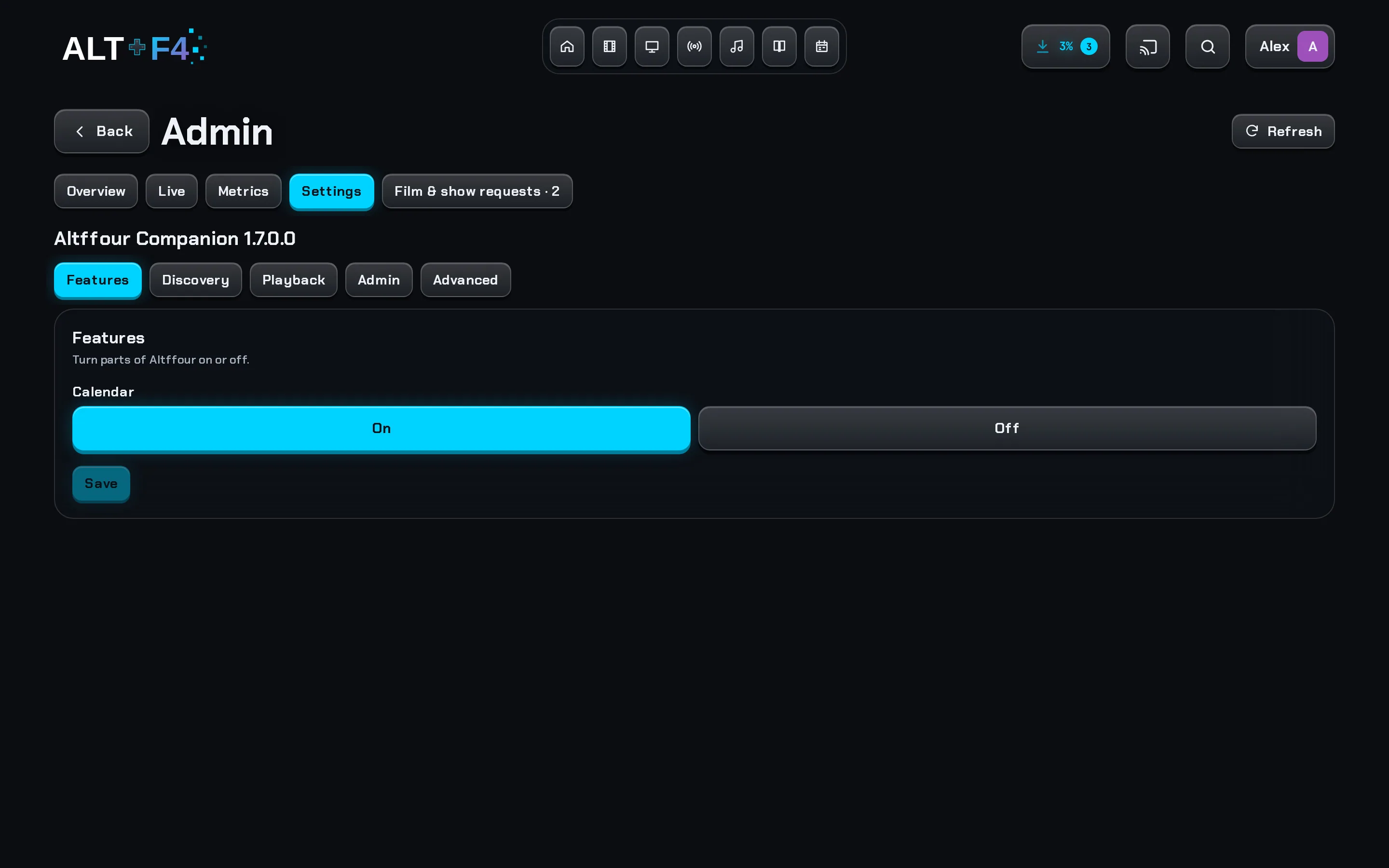
The admin Settings tab with Companion's settings in sections, saved from the app

Ready to start?

Sign in to Altffour as a Jellyfin administrator and open Settings → Setup. Everything it changes is an ordinary setting you can change again later.

Open the app